
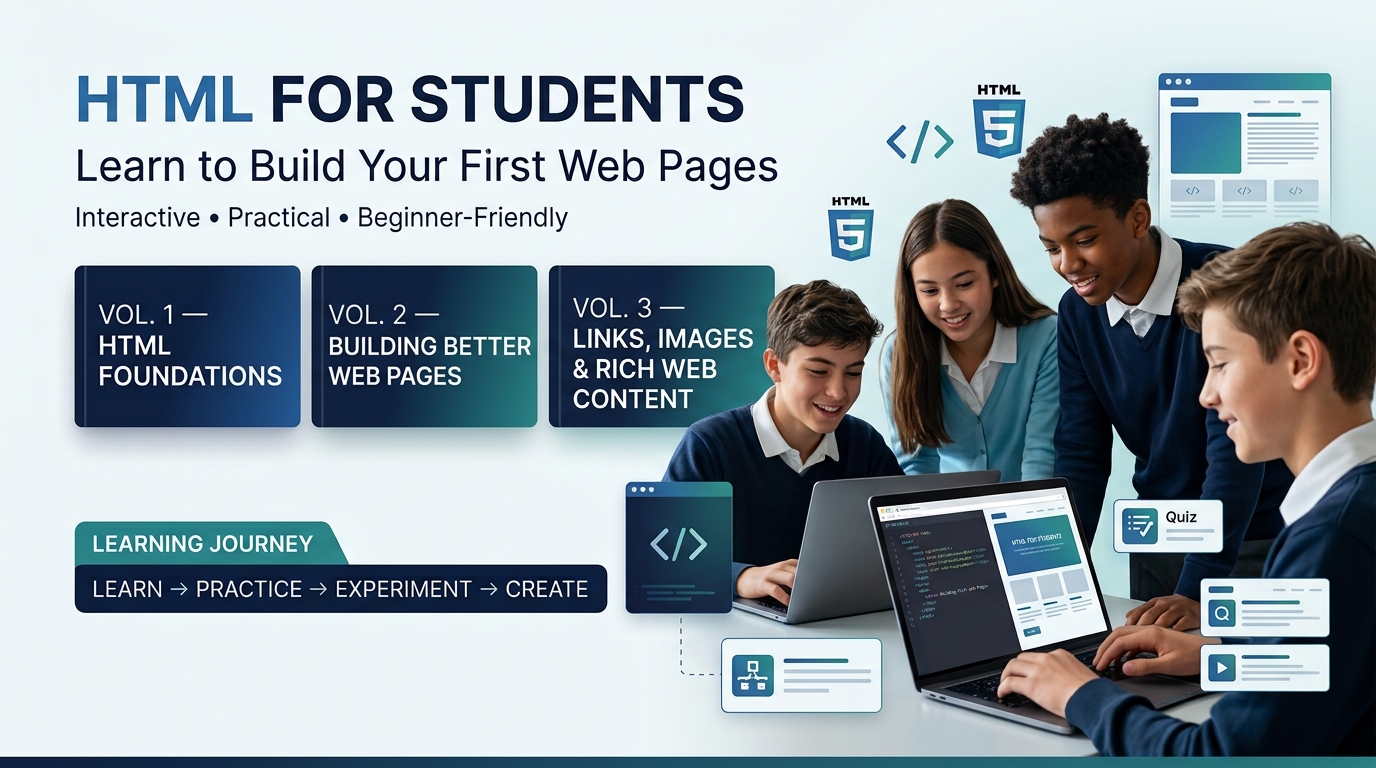
HTML for Students
Learn to Build Your First Web Pages
A beginner-friendly interactive learning series designed to help students understand HTML, practice coding, and build their own webpages step by step.
Start Your Web Development Journey
HTML is the foundation of webpages. This learning series introduces students to HTML through simple explanations, examples, practical activities, quizzes, coding exercises, and projects.
Learn
Understand HTML concepts through clear, student-friendly explanations.
Practice
Experiment with HTML code and see how webpages are created.
Create
Apply your knowledge by creating your own webpages and projects.
Interactive HTML Learning Series
📘 Vol. 1 — HTML Foundations
HTML for Students — Learn to Build Your First Web Pages
Volume 1 introduces the fundamental concepts of HTML and guides beginners through their first complete webpages.
What You’ll Learn
- What HTML is and how the Web works
- HTML tags and elements
- The structure of an HTML document
- Headings and paragraphs
- Links and images
- Lists and basic webpage content
- Practical coding activities
- HTML quizzes and learning checks
- Mini projects and challenges
📖 HTML for Students — Vol. 1
Open the interactive book and begin learning HTML step by step.
📗 Vol. 2 — Building Better Web Pages
Continue your HTML journey with more practical concepts, examples, activities, quizzes and hands-on exercises.
Continue Learning
- More HTML elements
- Practical webpage development
- Interactive coding activities
- Examples and exercises
- Quizzes and learning checks
- Practical HTML challenges
📖 HTML for Students — Vol. 2
Continue your HTML learning journey through the interactive book.
📙 Vol. 3 — Links, Images & Rich Web Content
Take your HTML skills further by learning how webpages can connect information and use visual content to create richer web experiences.
What You’ll Explore
- Creating hyperlinks
- Connecting webpages
- Using internal and external links
- Adding images to webpages
- Understanding image URLs
- Using the
srcattribute - Using meaningful
alttext - Combining links and images
- Practical exercises and challenges
📖 HTML for Students — Vol. 3
Open the interactive book and continue building your HTML skills.
Your HTML Learning Path
Build your skills step by step through the three-volume interactive HTML learning series.
📘 Vol. 1
HTML Foundations
Learn the fundamental building blocks of HTML and create your first webpages.
AVAILABLE NOW📗 Vol. 2
Building Better Web Pages
Continue learning HTML through practical examples, exercises and interactive activities.
AVAILABLE NOW📙 Vol. 3
Links, Images & Rich Web Content
Learn how to connect webpages and enrich them with visual content.
AVAILABLE NOW💻 Your Next Step: Practice with Windows Notepad
The interactive editor helps you practice HTML directly in your browser. Once you feel comfortable writing HTML, take the next step and create a real HTML file on your own computer.
1️⃣ Open Notepad
On a Windows computer, open the built-in Notepad application. You do not need special software to create your first HTML webpage.
2️⃣ Write HTML
Type your HTML code into Notepad. Start with a simple webpage structure.
3️⃣ Save as .html
Choose File → Save As and save your file with an .html extension.
Example: my-first-webpage.html
4️⃣ Open Your Webpage
Find the HTML file you saved and double-click it. Your web browser will open the webpage.
Try Your First Real HTML File
After practicing in the interactive editor, try typing this example into Notepad:
<!DOCTYPE html>
<html>

<head>
    <title>My First Webpage</title>
</head>

<body>

    <h1>Welcome to My Webpage!</h1>

    <p>
        I created this webpage using HTML.
    </p>

</body>

</html>
🌐 See Your HTML Come Alive
Save the file as: my-first-webpage.html
Then double-click the file. Your browser will display the webpage you created.
Now return to Notepad, change something in your HTML, save the file, and refresh the browser.
Write → Save → Open → See → Change → Refresh
🚀 Keep Building
You have now moved from reading about HTML to actually writing HTML. Keep experimenting, creating and improving your webpages.
🚀 Start Learning HTML